Ace Pro 2 video settings
Log on to the menu and return to the Ace Pro 2 overview page.
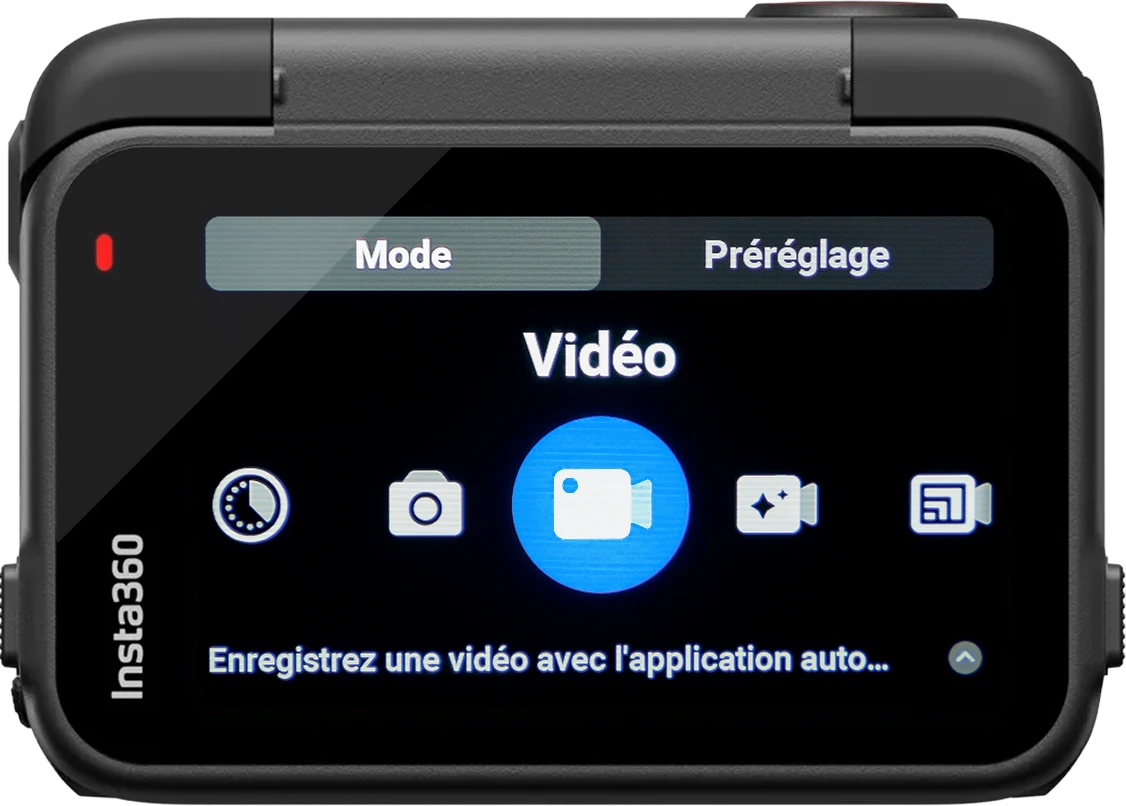
Click on the bottom left corner button Vvideo represented by the camera icon.
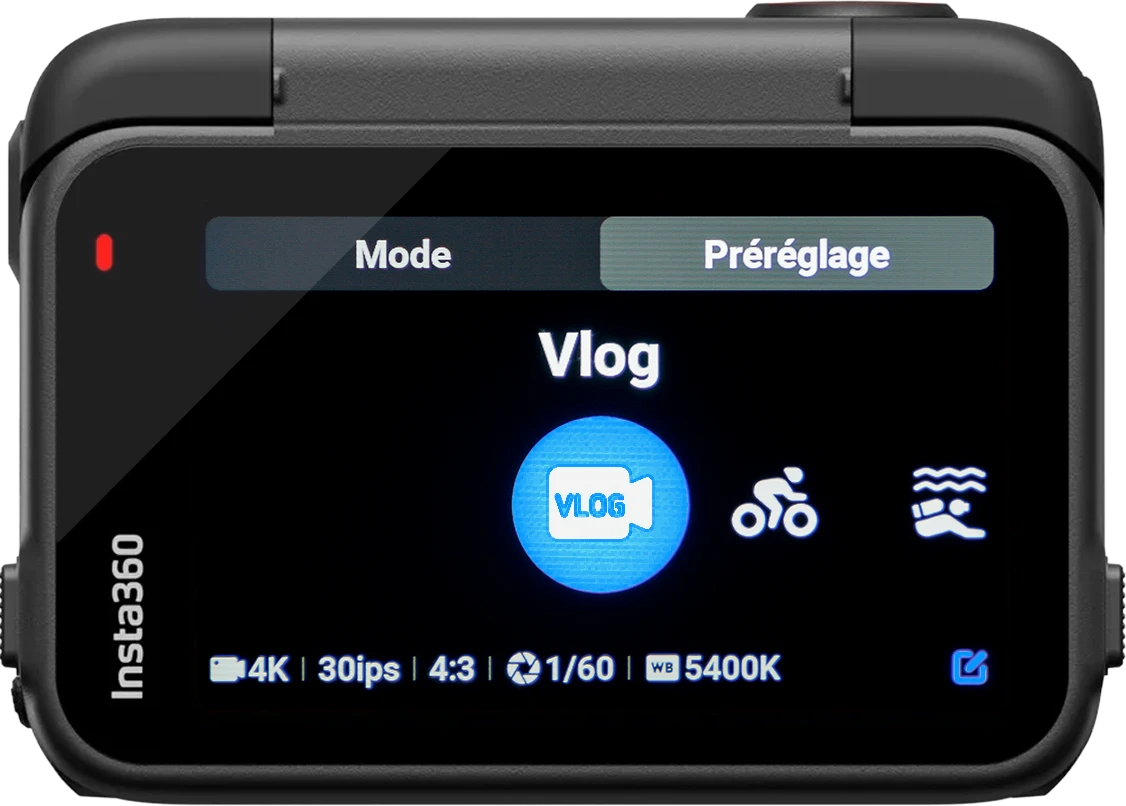
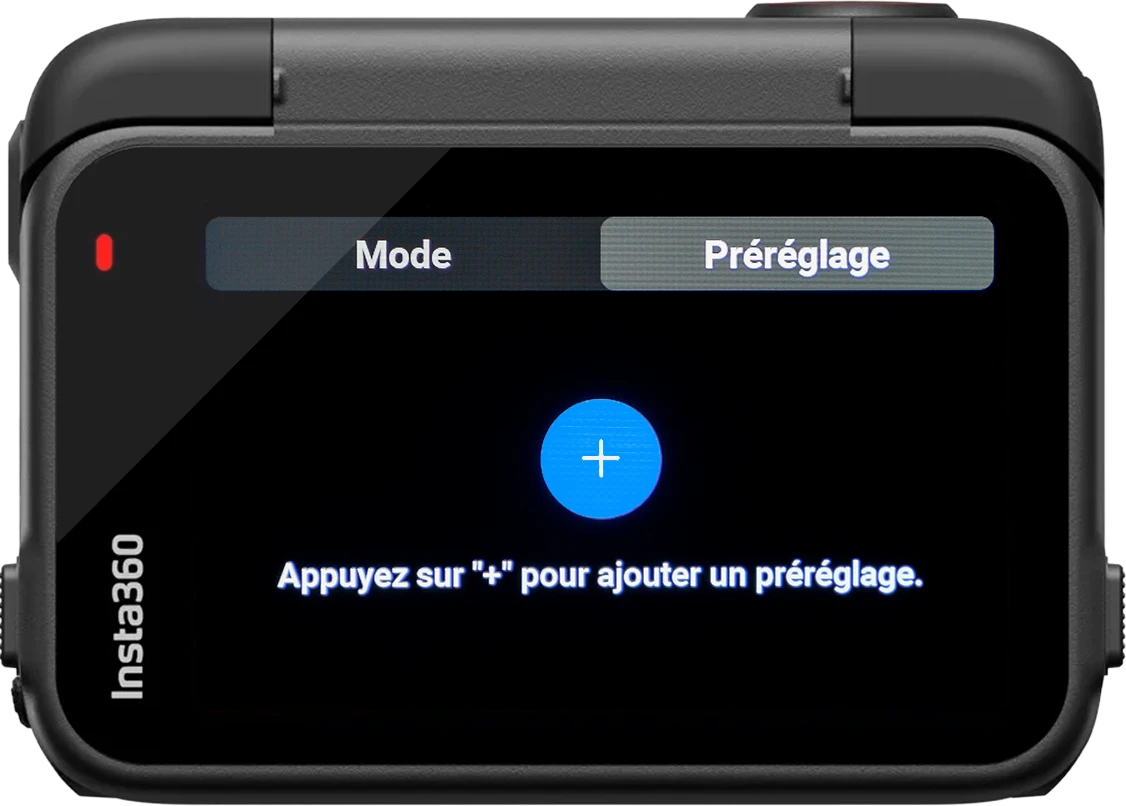
Here you can see all the capture mode from your camera. We will create our own by clicking on «"Preset"».
Once you arrive on this page, you will find predefined parameters created by Insta360.
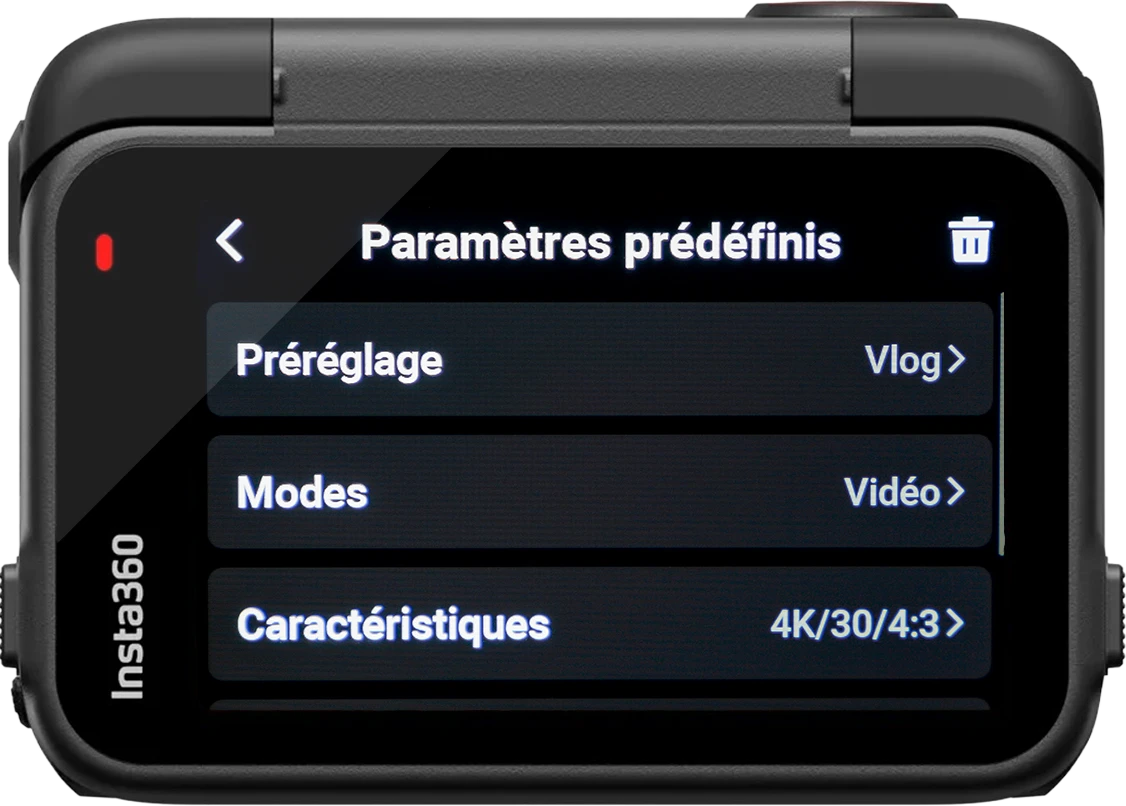
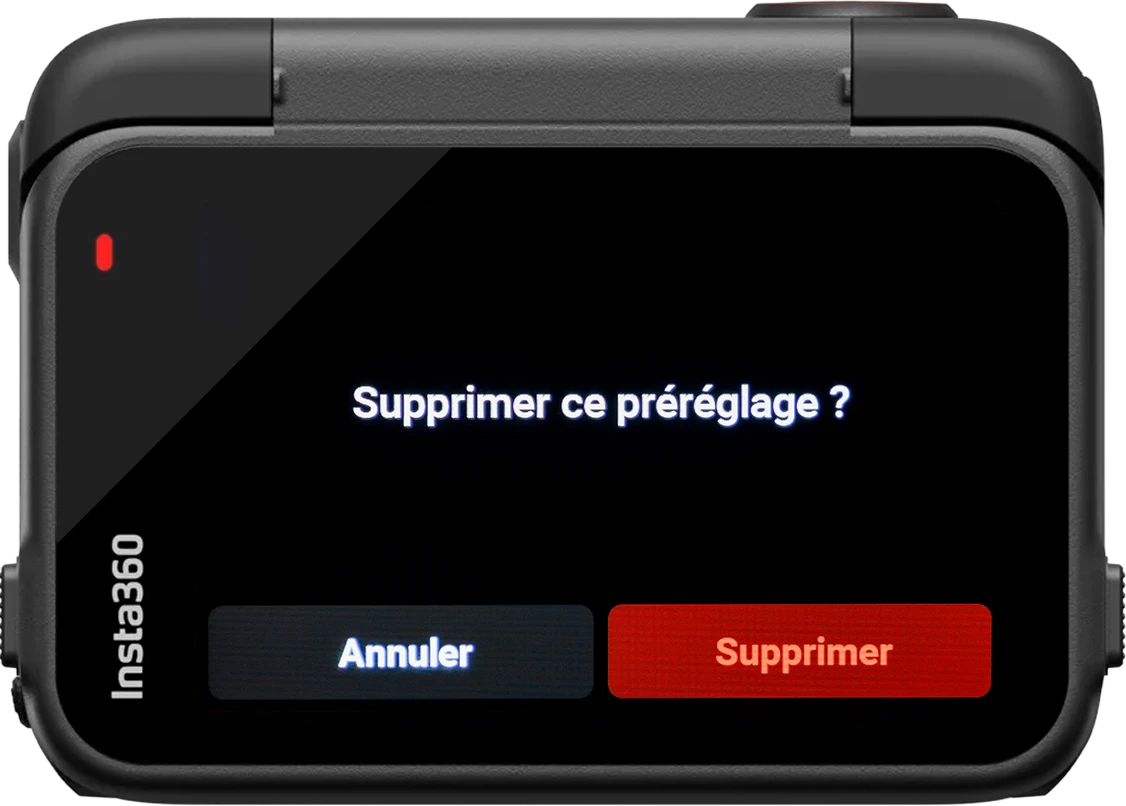
To avoid confusion, it is possible to... delete, which I encourage you to do in order to leave only the ours. Simply click the button. to modify bottom right corner, then click on the icon of the basket top right.
Now click on the «"+"» in order to create a new preset.
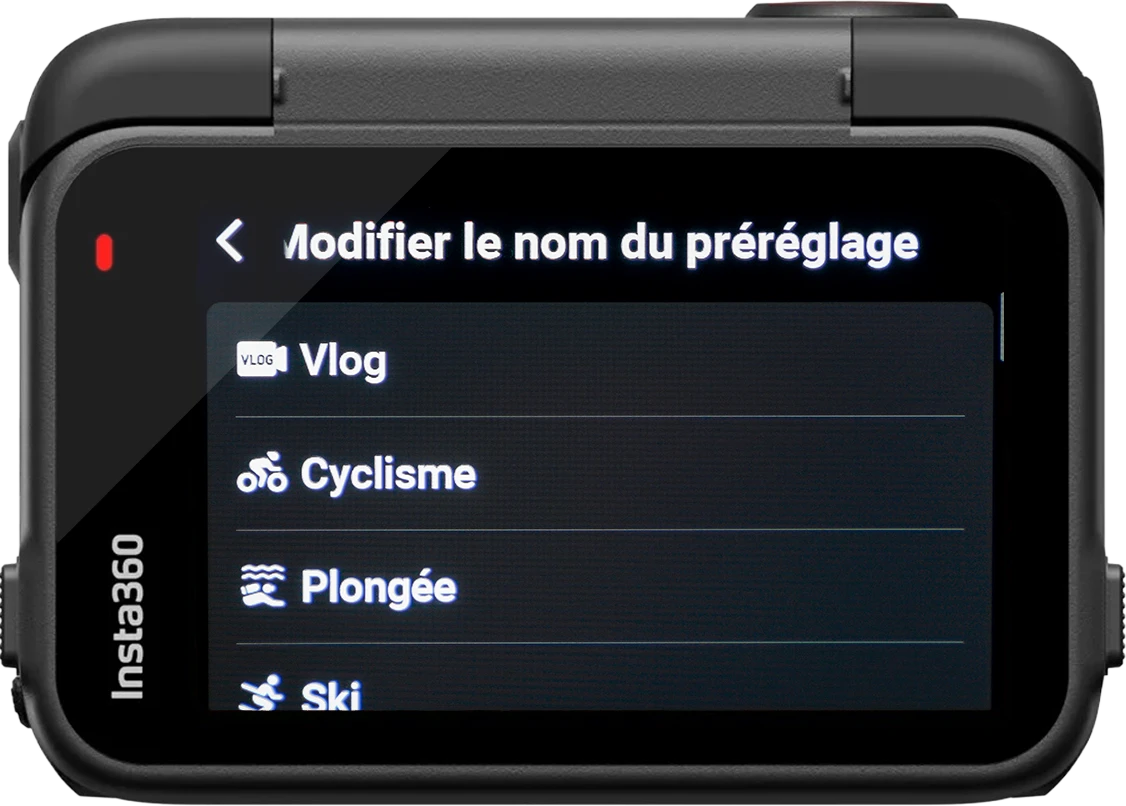
You have several options. predefined names, But the worst part is that for a camera sold for motorcycle use, there is no no motorcycle mode !
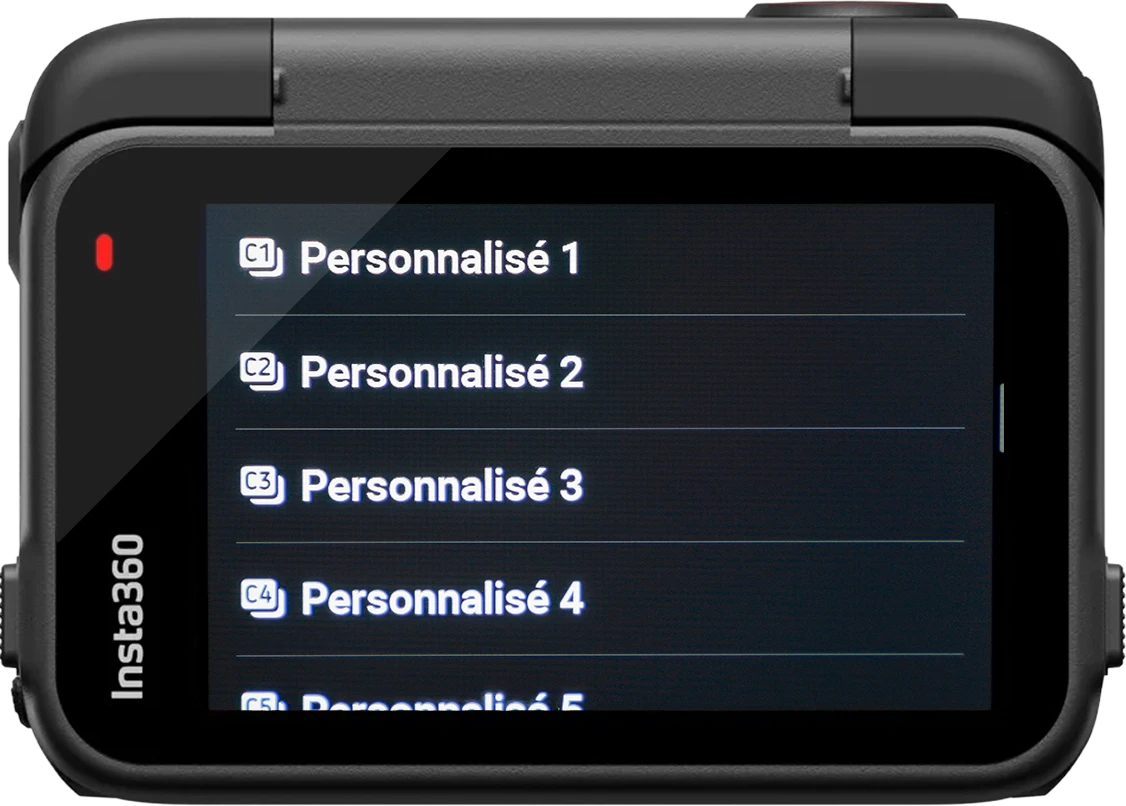
As you scroll down the page you will have choices numbered, That's what I use in my case.
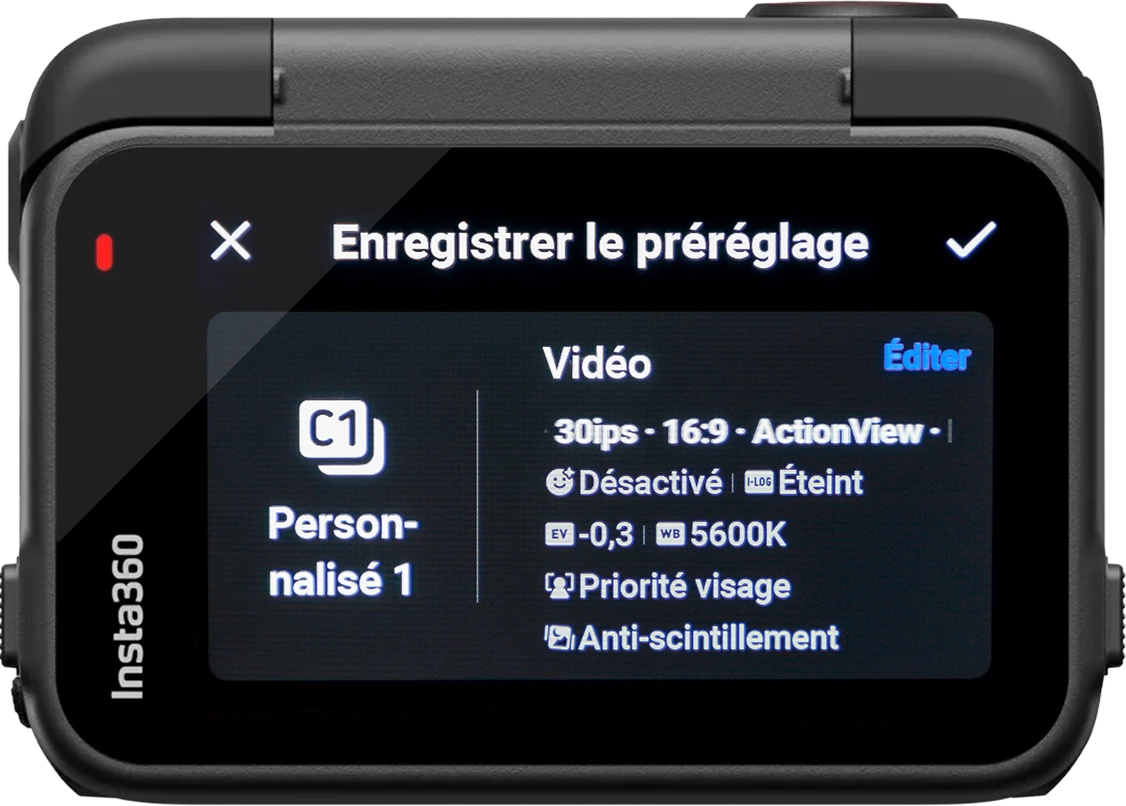
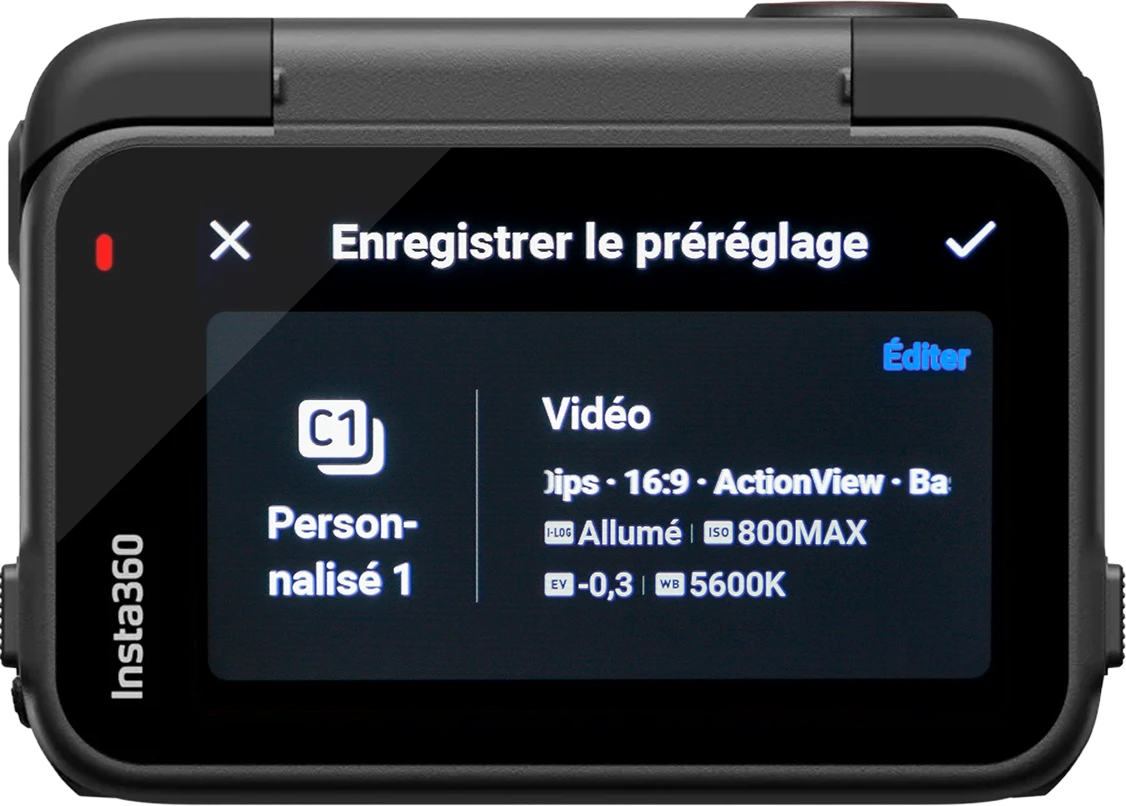
Once you've chosen a mode, don't save it right away. We'll first adapt it to our needs. To do this, click the blue button. «"Edit"» .
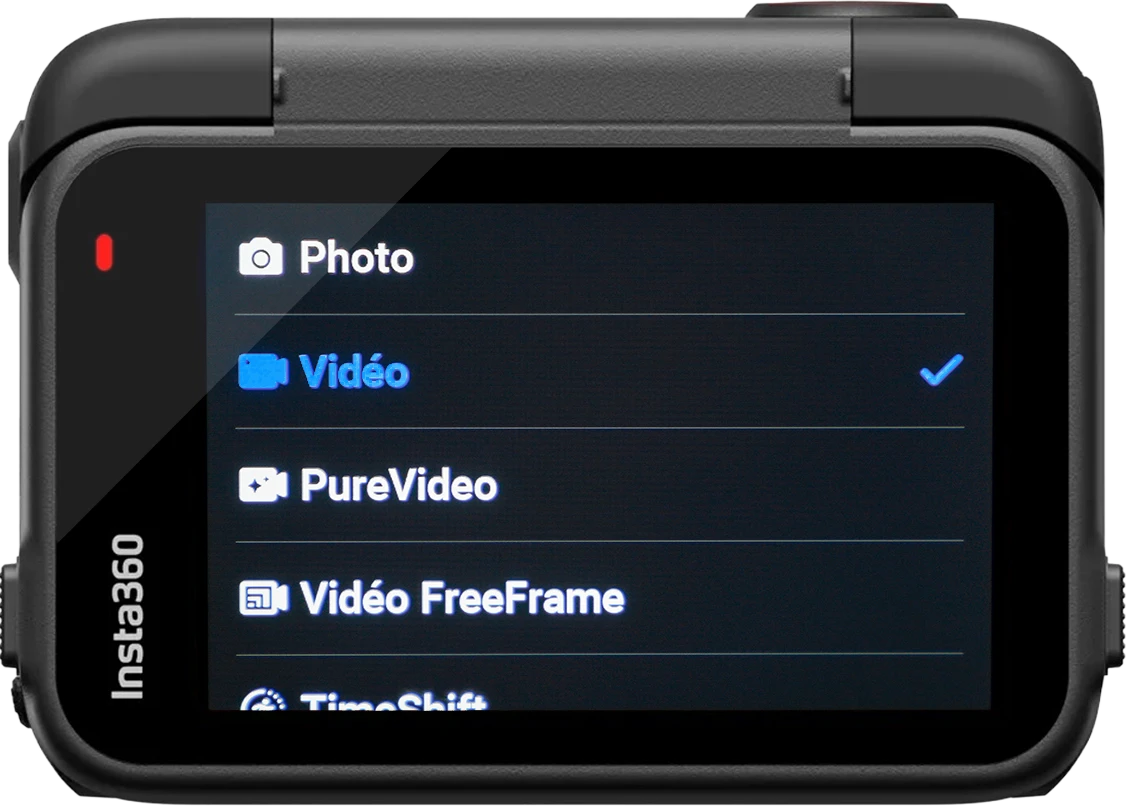
First, select «"Fashions"» .
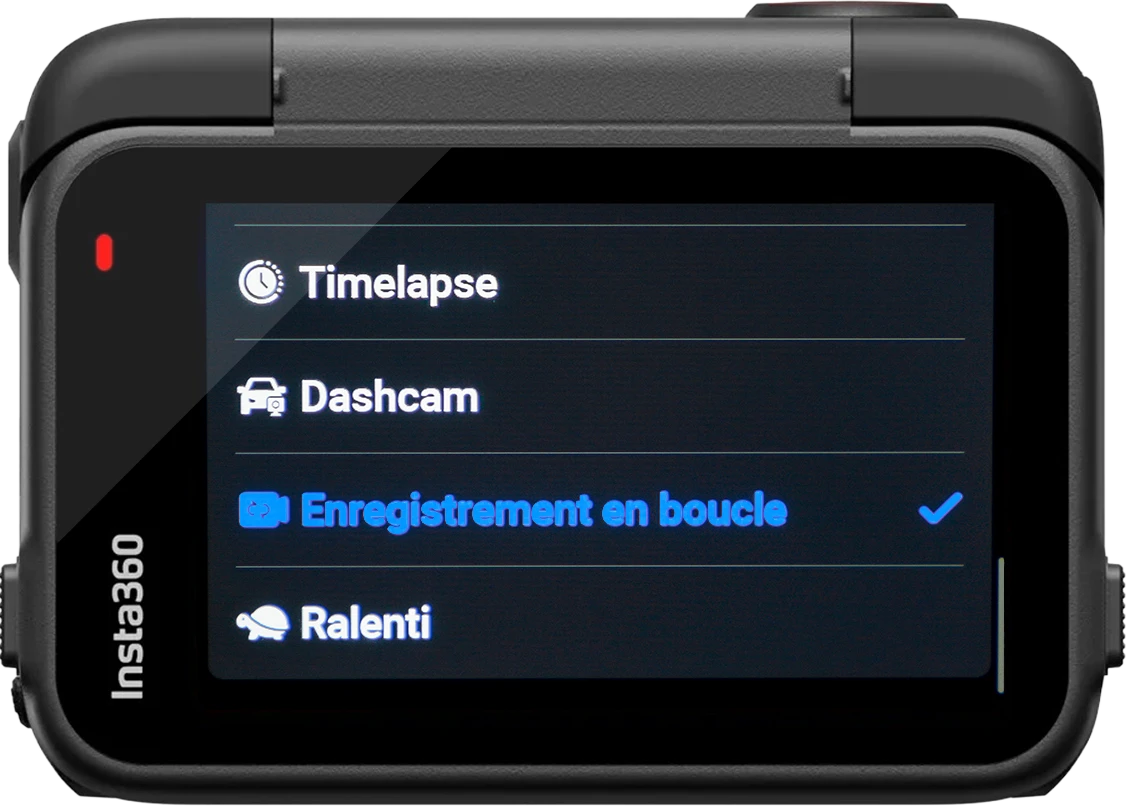
You now have two choices. "Video or «"Loop recording"».
The mode "Video is the mode everyone is familiar with: You start and stop recording whenever you want by pressing the button (or holding it down to delete it if you know you're not going to do anything with it)
The mode «"Loop recording"» He is extremely useful if you are filming... vlog or very long walks because it allows you to not miss anything and, above all, to keep only what interests you. We'll come back to this further down the page.
Note that you can create several profiles in order to switch quickly between them as needed.
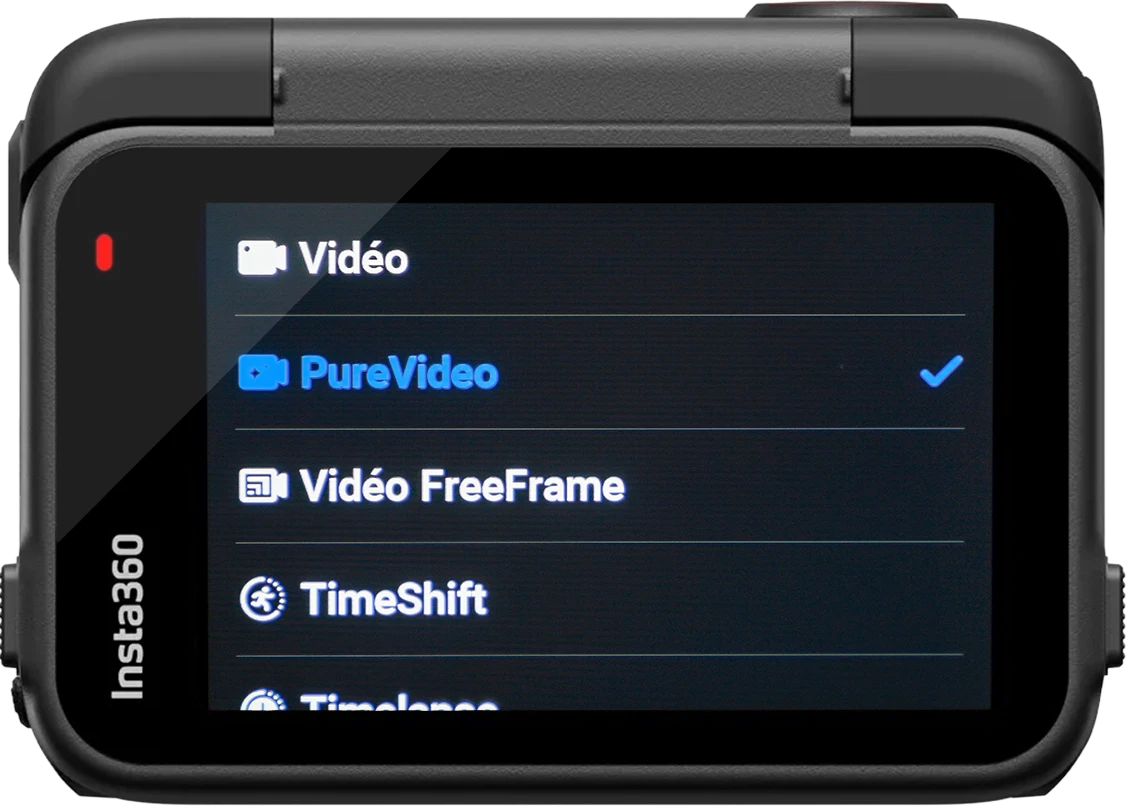
You can create one of each and a third one to apply the mode to. «PureVideo» This will be useful if you're filming at night. Note that with this mode you won't need to change anything else.
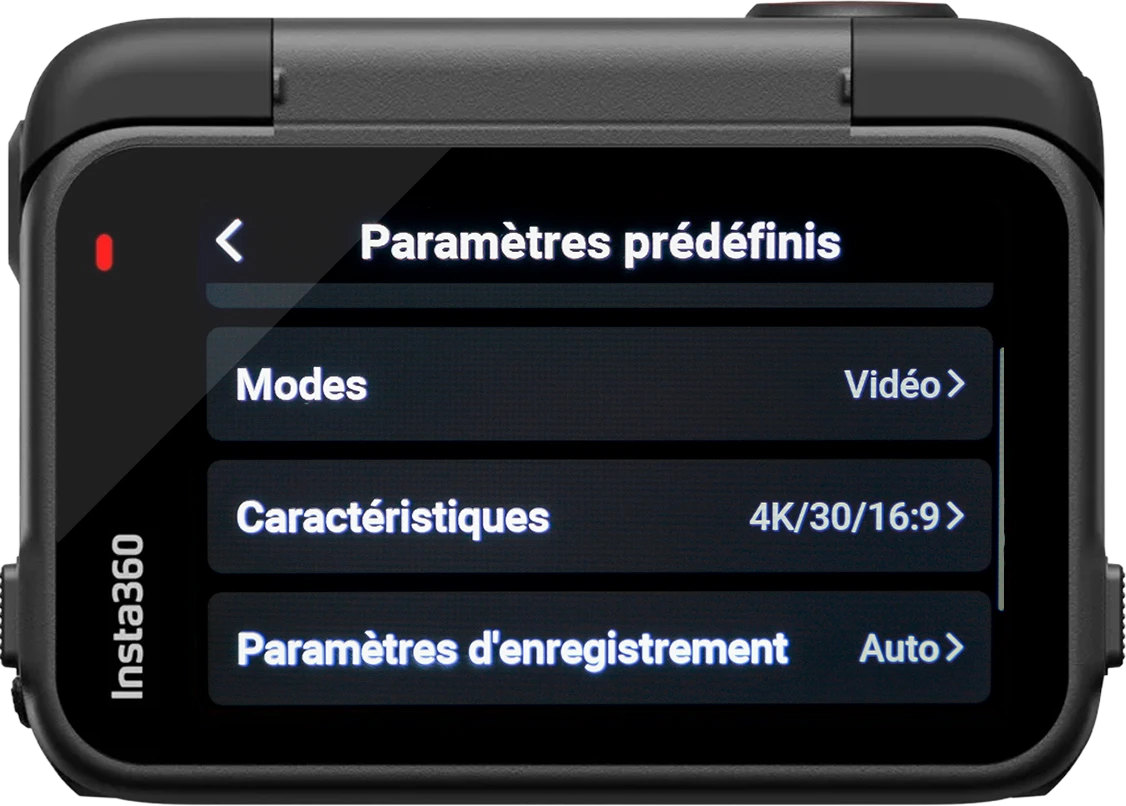
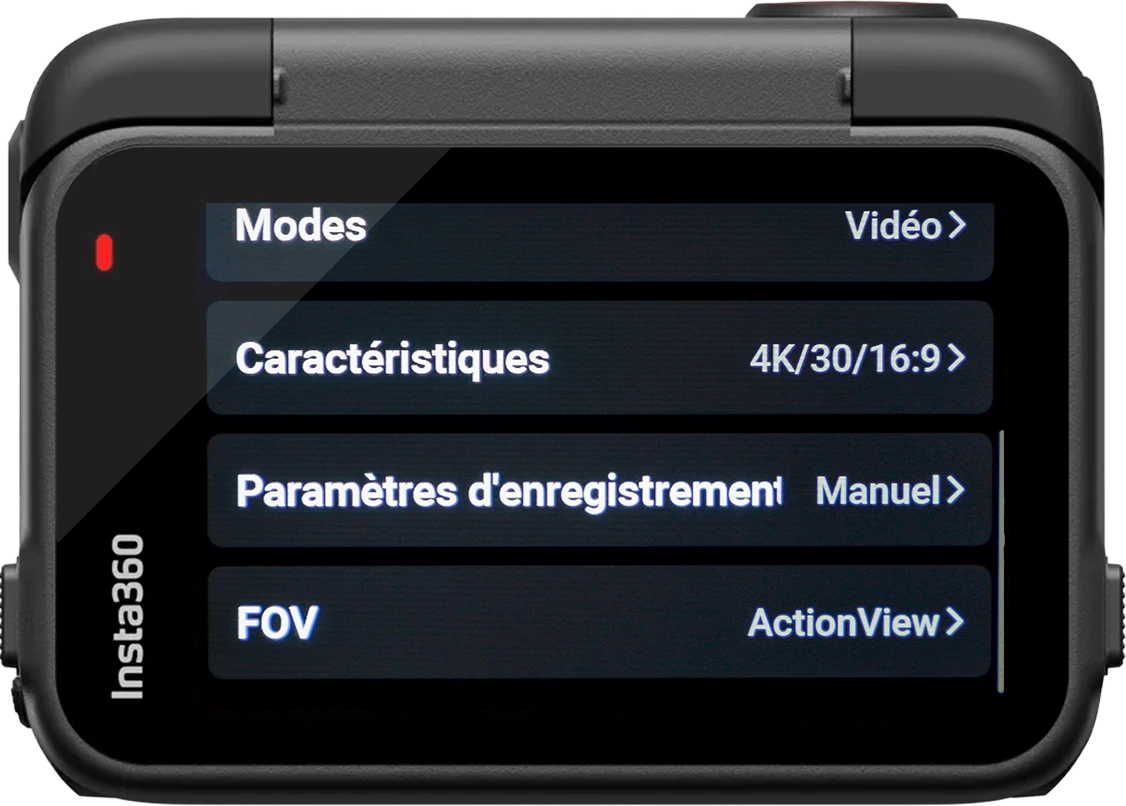
Now go back and enter the menu. «" Features "».
This is where we will settle the video settings.
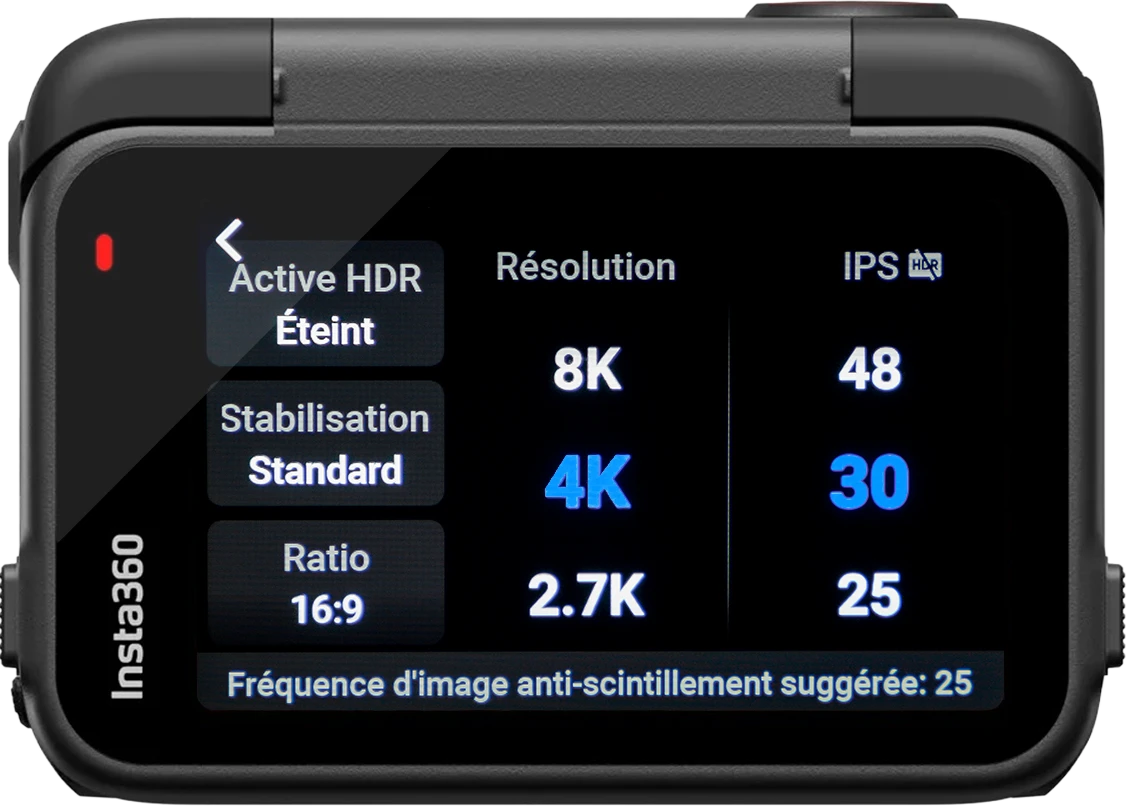
Start by defining the two on the right side of the screen:
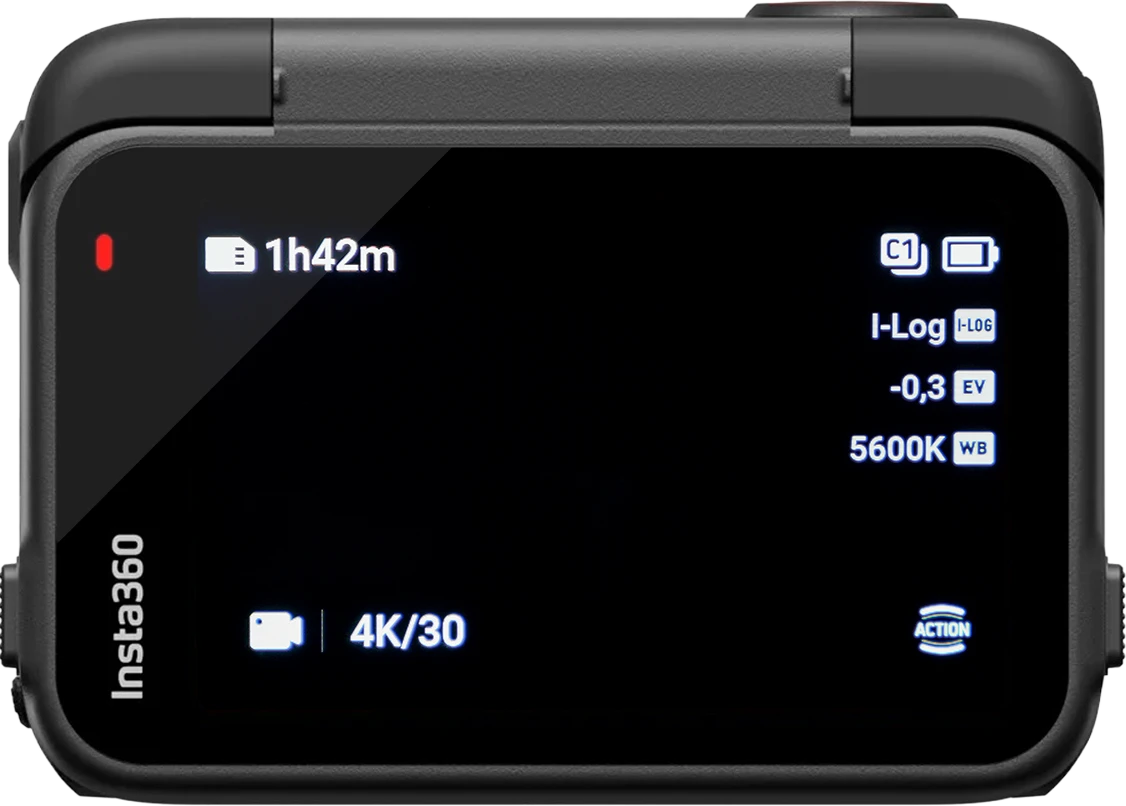
4K – Although explained above, the videos will be exported in 4K, The quality would theoretically be good best if the source is in 8K. However, the mode 8K limit significantly the field of vision of the Ace Pro 2, which ruins the video. I'll tell you not recommended When filming in 8K with this camera, the zoom is too significant.
30 – Forget the race for FPS aiming for 60 or even 120; for motorcycle videos and to get realistic footage in general, we film at 30 frames per second.
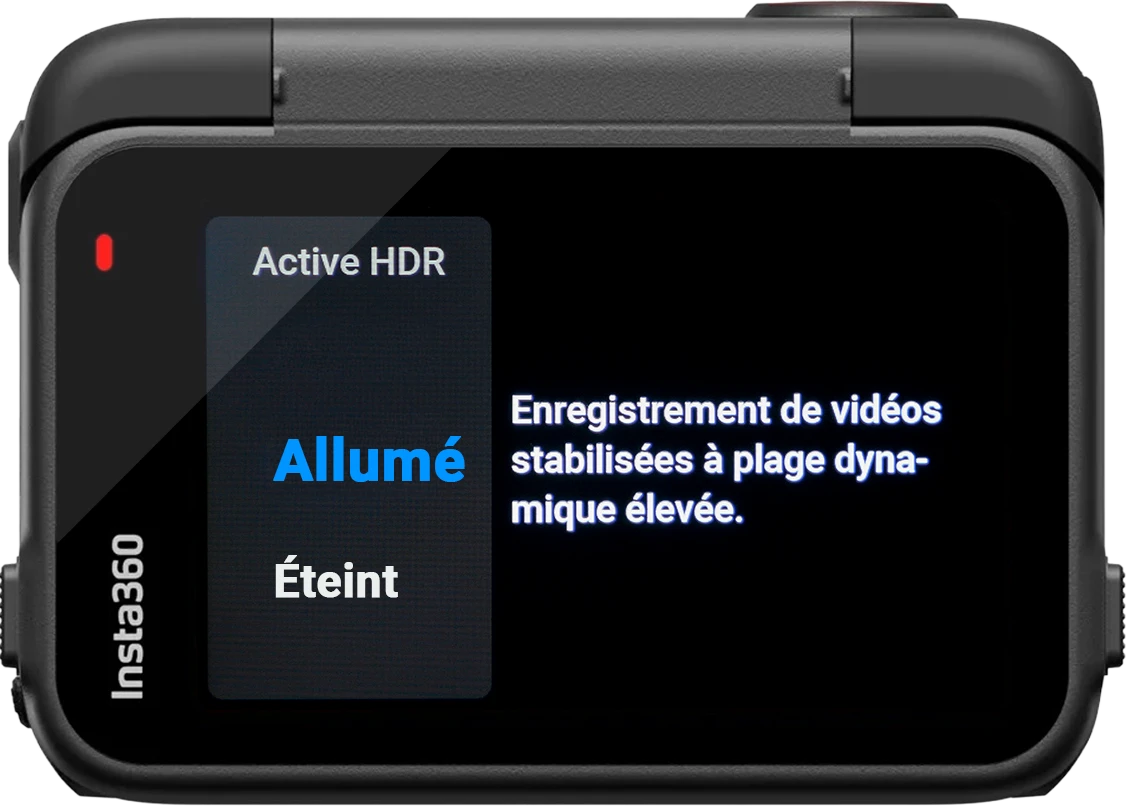
Turned on - HDR (High Dynamic Range) allows preserve more detail in very bright and very dark areas of your image. The result: a more balanced video, with richer and more natural colors, especially when you're filming in conditions of strong contrast (bright sky, strong shadows, backlighting)..
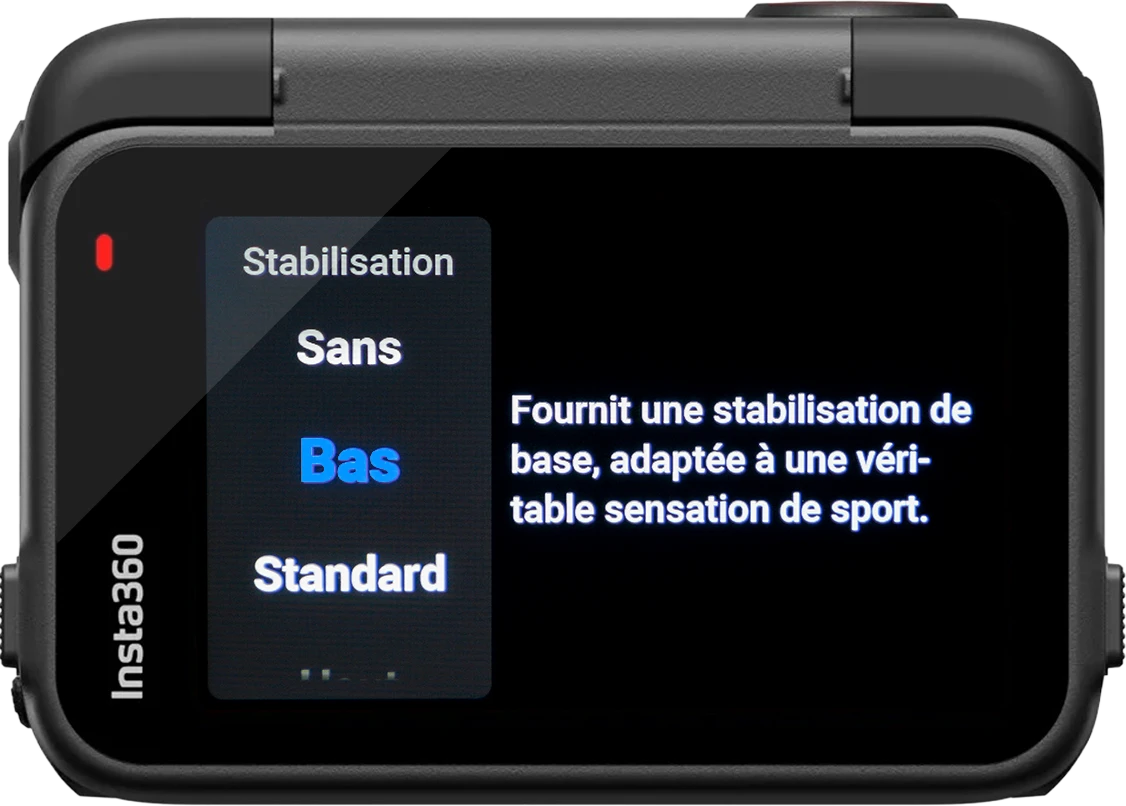
Down - This setting is more than sufficient for motorcycle use; it's even sometimes a bit too extreme, and it would benefit from finer adjustment to achieve a setting between... «" Without "» and «" Down "».
In mode «" Standard "», You may experience more stuttering in addition to having a narrower field of view.
Some people prefer not to not activate stabilization because it's in their view more immersive, personally I find that without it gives the wreath... Think above all of spectators of your videos, most of us will prefer to watch a video stable rather than one that aspen in all directions.
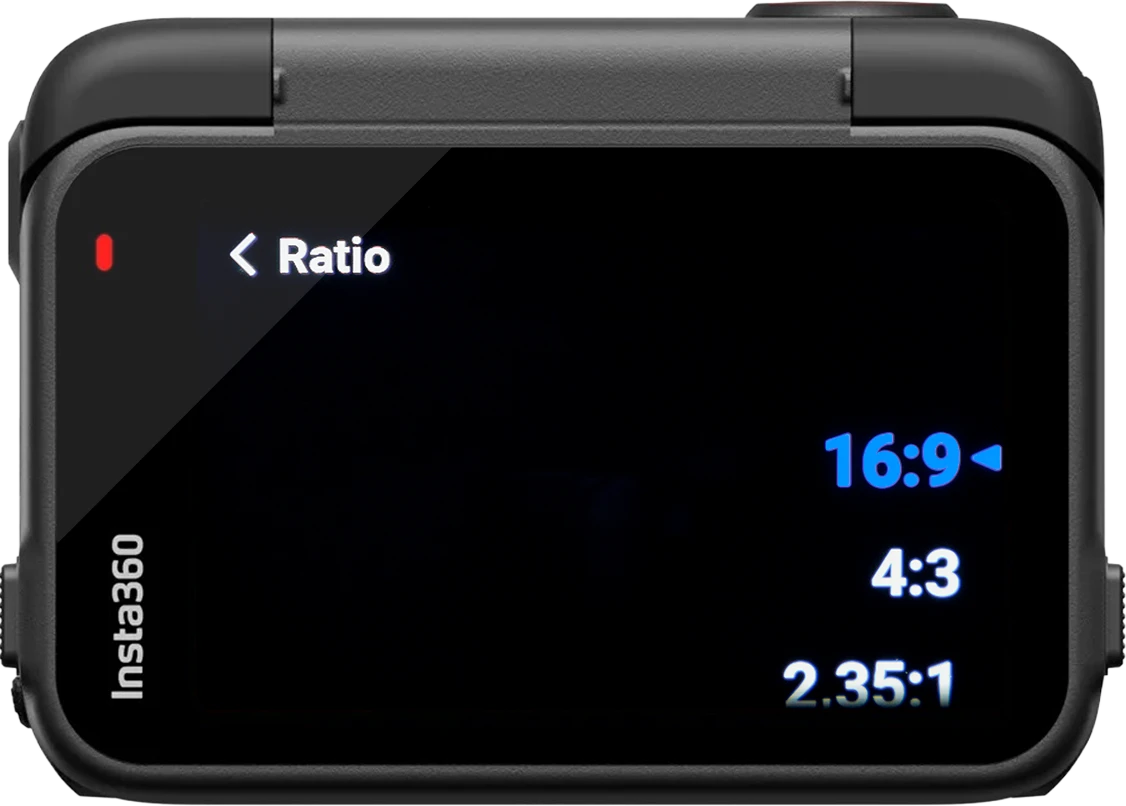
Choose your media destination:
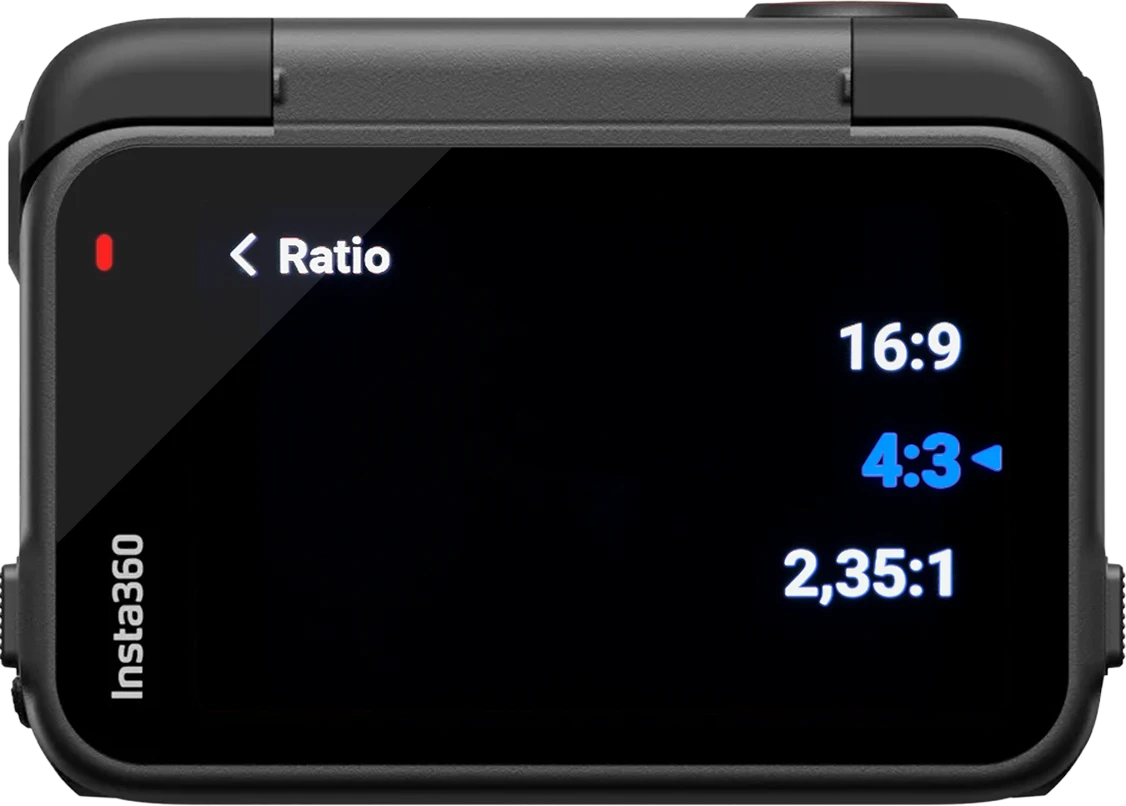
-16:9 if you wish to poster on YouTube or other landscape format OR if you wish to post on social networks such as Instagram or Tiktok portrait format
– 4:3 if you wish to post on YouTube or other landscape format AND if you wish to post ALSO on social networks such as Instagram or Tiktok portrait format
The 16:9 format is used for both formats (portrait or landscape) but you have to choose between one or the other in order to maximize the viewing angle according to the destination video. For landscape you will put the Ace Pro 2 right on your helmet or handlebars, for portrait you will turn it to 90°.
If you filmed a video in one format and later want to convert it to another format, it is still possible during editing, but at the cost of resolution, using a trick I will show you later.
The 4:3 format is a format that uses full size of the sensor and therefore producing a video in a higher format (and not practically square as GoPro offers with its format 8:7). This format allows it to be cropped and distorted in order to release a 16:9 very wide FOV AND a format 9:16 Wide FOV at the same time.
On a computer as we'll see later, there's a trick you can use to obtain a 16:9 format. AND 9:16 format with FOV Action in the better quality made possible thanks to this format!
You can now return to the previous page to continue.
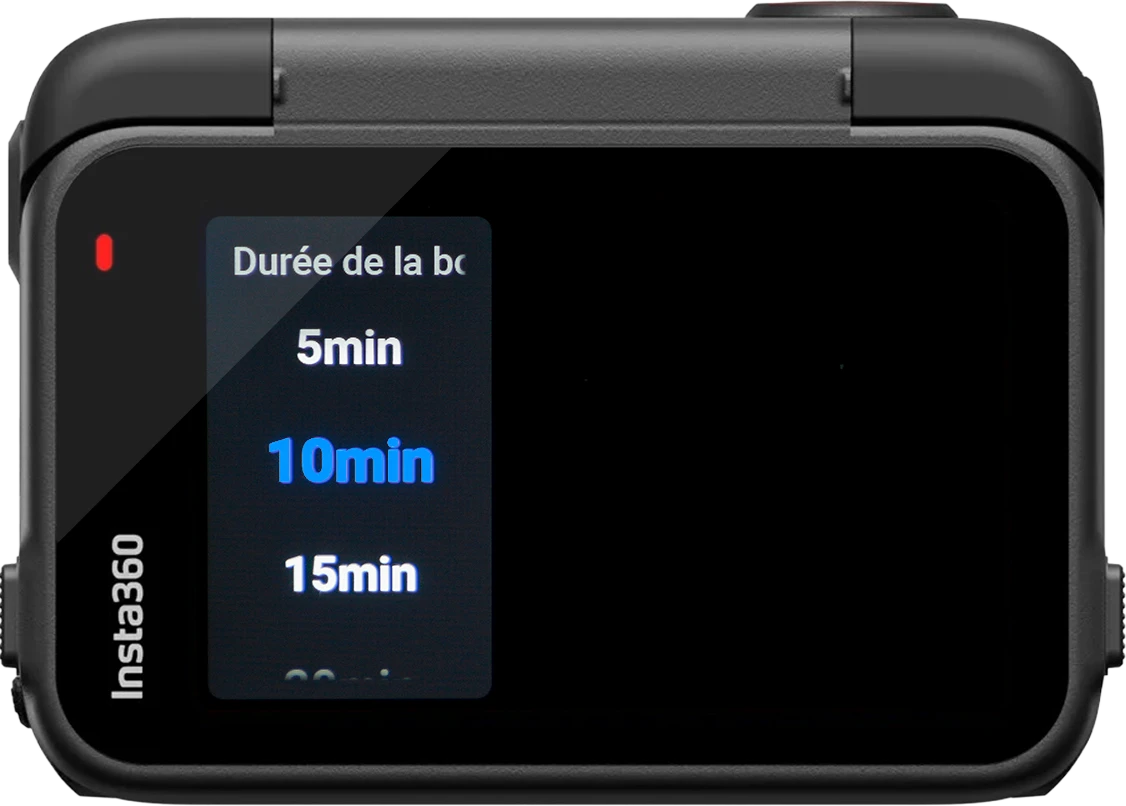
Unless you have selected the mode «"Loop recording"» As I mentioned earlier, you still need to define the duration of this loop as explained below.
This mode, as its name suggests, allows you to record in loop to avoid Don't miss anything and to preserve that the necessary.
When you press the button to start filming, the camera captures all From this moment on. Whenever you want retain a stock Once you have filmed, press the button again. The camera will record the last moments filmed according to the defined duration.
10 minutes: the camera will retain the Last 10 minutes.
Attention so with this mode because only the last Moments are recorded. If something happens at start of your video, but you only press the button at the very end. one hour while the loop does 10 min, you will not have not this beginning.
Also note that as soon as the camera has completed To record the last few minutes, you will need to press on the button to restart a new registration.
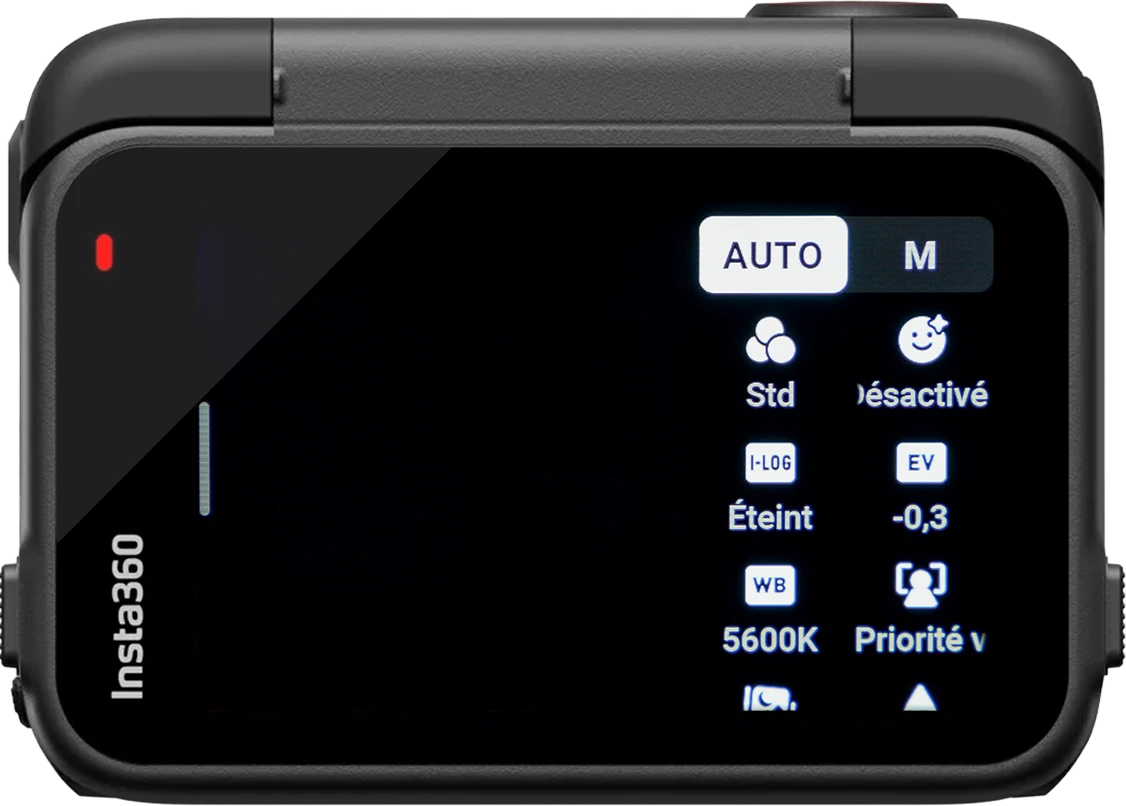
Go to the menu now «"Recording settings"». Then switch modes «"AUTO"» in mode «M» top right
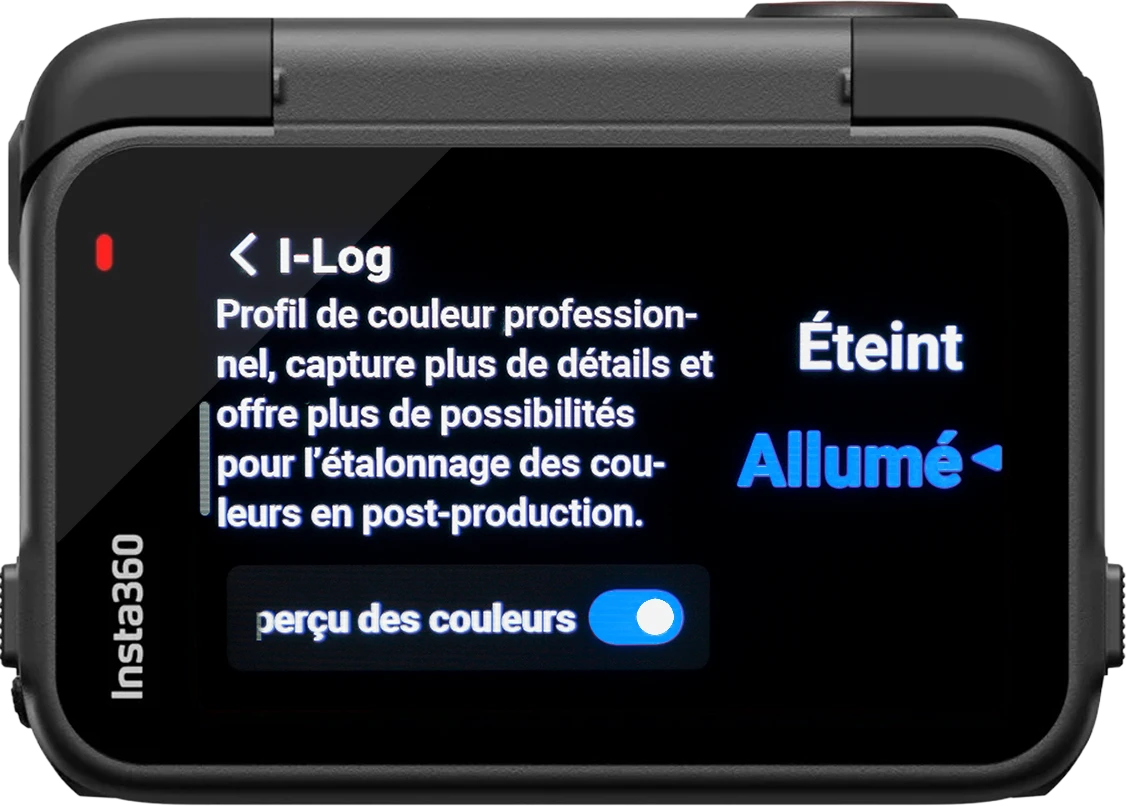
Turned on - You'll get the most out of room for manoeuvre for color editing. You can select this setting even if you don't don't know how to modify the colors, because aI'll explain later what to doand twoeven if you change your mindyou can render the profile Standard with a single click during assembly. Switch from I-LOG à Standard is possible, but not the other way around.
You can check the box «"Color Preview"» in order to have a realistic rendering directly on the camera.
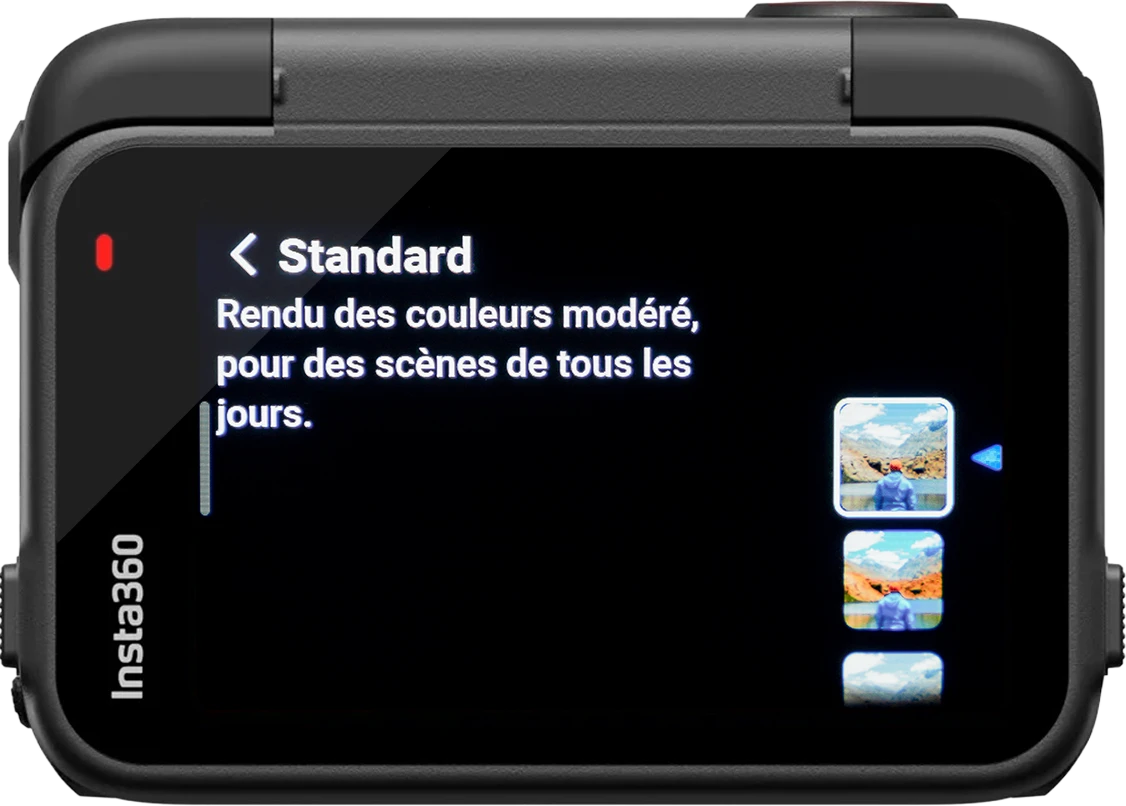
If you really don’t want to bother with color editing during the editing process, go for the Standard profile.
You can also choose from built-in color profiles if you don't want to touch the color at all.
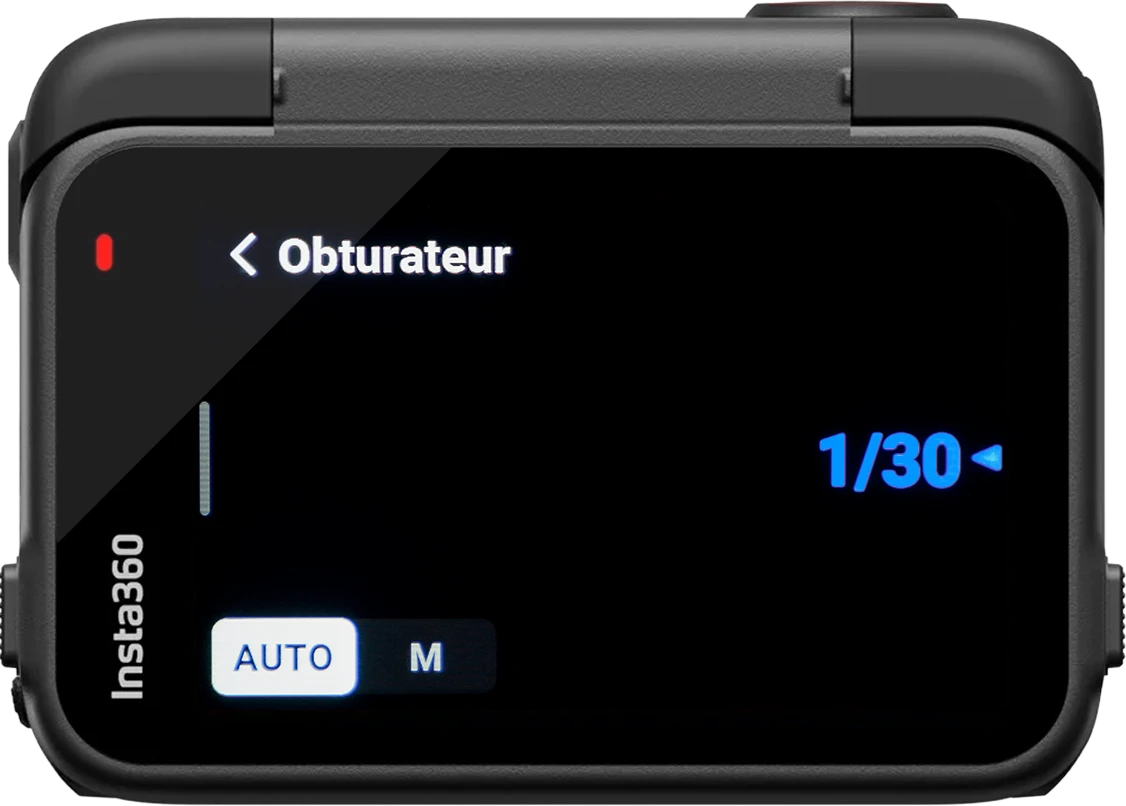
For now, leave it on Auto, I will discuss this setting later when we tackle the choice of filters and adjusting this option.
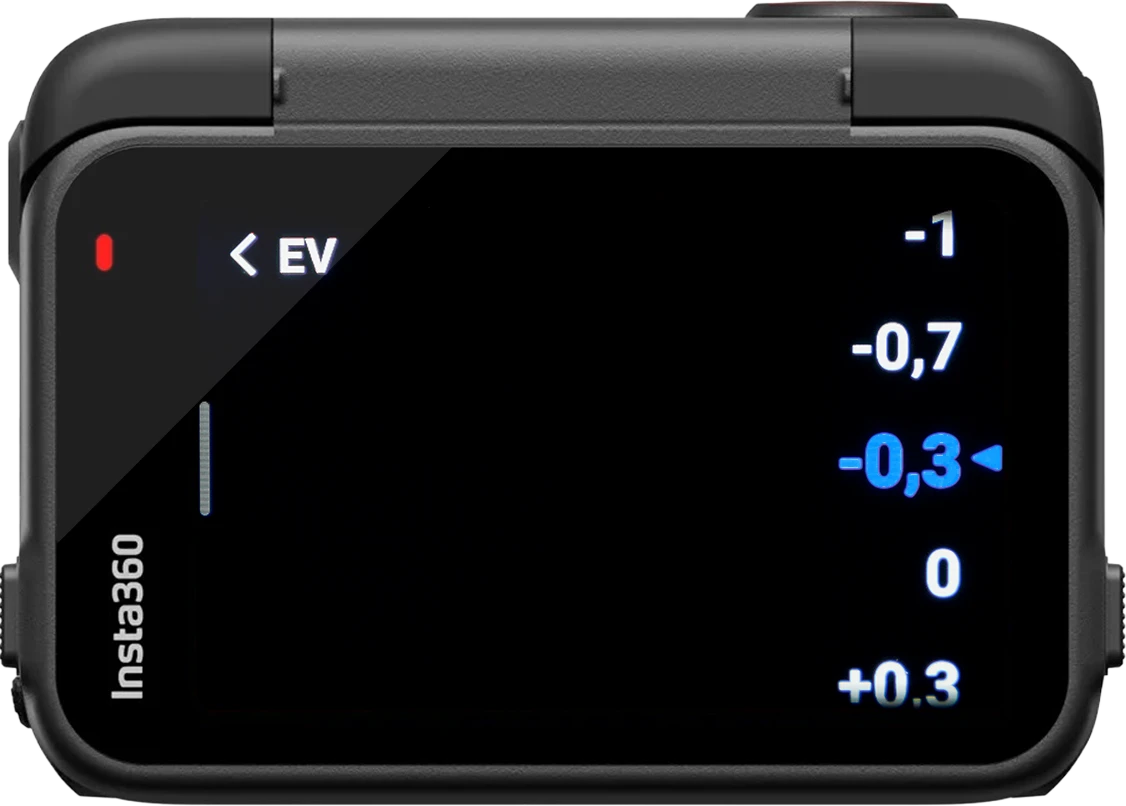
-0.3 or -0.7 - The EV (Exposure Value) rule the overall brightness of your image.
– A value positive (+1, +2) makes the video clearer.
– A value negative (-1, -2) makes her darker.
This is useful for correct the exposure when the camera overexposes (sky too white) or underexposed (image too dark). Generally, a slight -0.3 to -0.7 gives a more natural rendering because the Ace Pro 2 tends to overexpose a little bit.
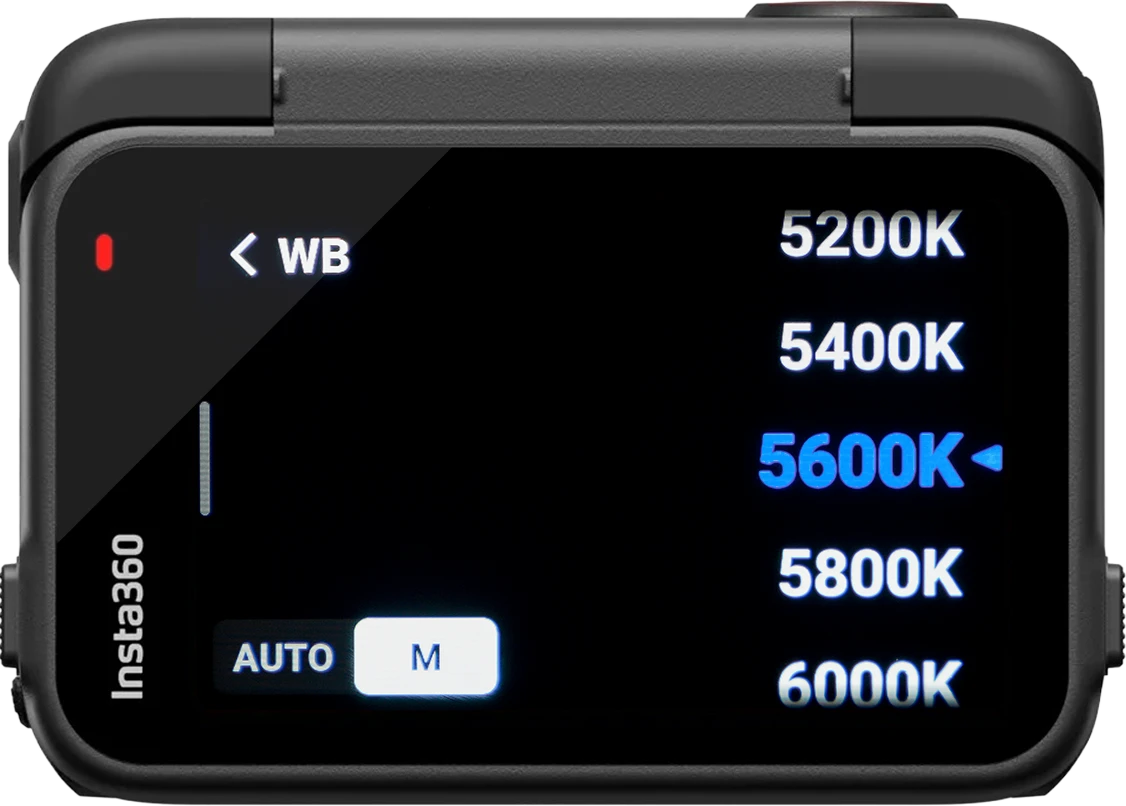
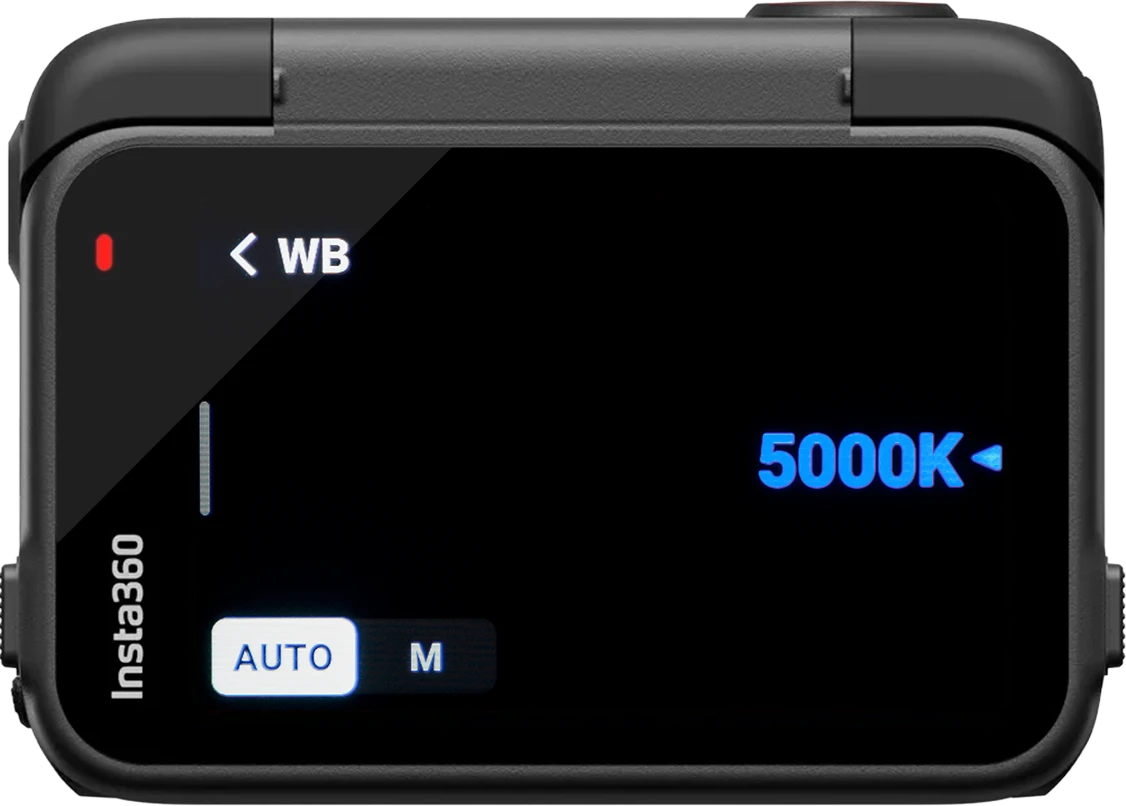
5600K - This option is one of the most important in order to achieve the best possible natural, This value corresponds almost exactly to the color of the daylight (which 5500K, (but the Ace Pro 2 doesn't offer exactly that value).
The fact that block prevents the Ace Pro 2 from modifying it in a way untimely itself when it's not not necessary and in normal times, because she doesn't know how to do it. properly. This creates color variations depending on where you are looking, towards the sky or towards the ground when the sky is no longer visible, when you pass under a tunnel, or when one or more particular colors appear in the image. On motorcycles, if white balance is set to automatic you can see the tar on the road change color and become bluish for example.
When shooting at night on the other hand, be sure to set the white balance to Auto, otherwise the video will be far too yellow. A manual setting is not recommended because when driving in the city, for example, many light sources will be on screen (billboards, LED or halogen streetlights, store windows, traffic lights, etc.).. Not all of these sources emit the full same temperature color and the sun is not dominant during night videos to compensate for this.
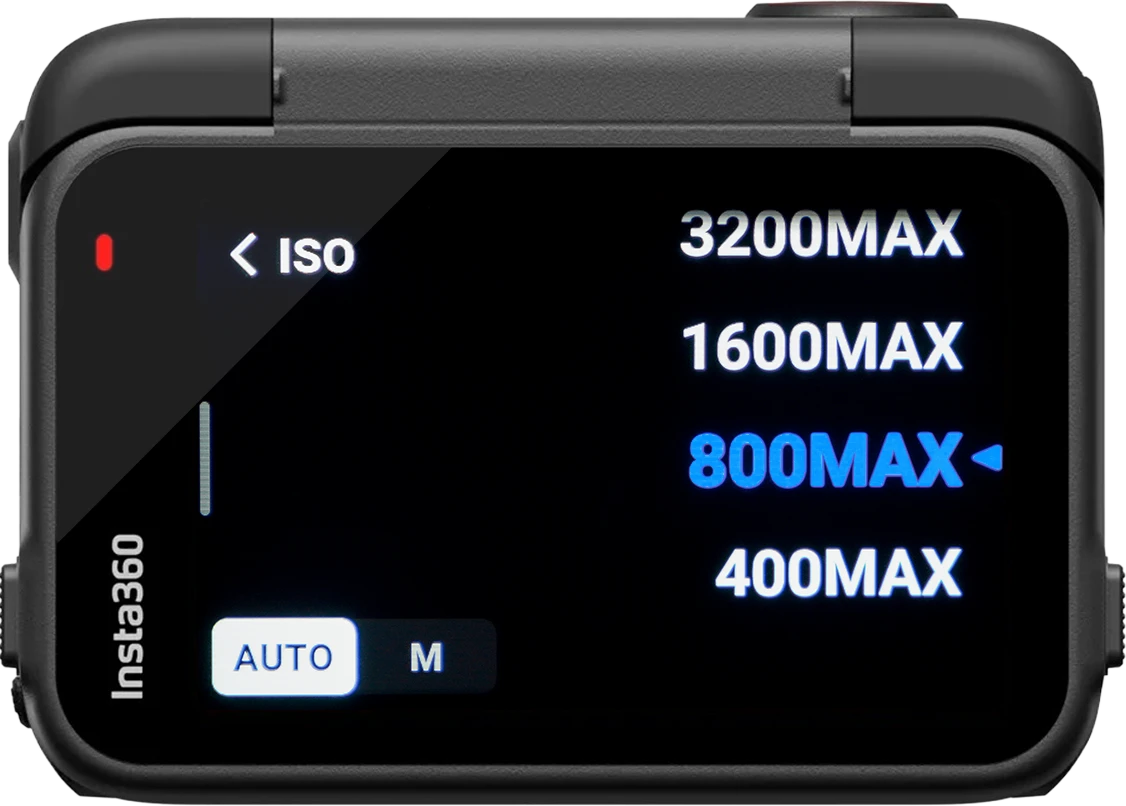
AUTO – 800MAX – This allows the Ace Pro 2 to slightly increase ISOs without any digital noise in the image if necessary when the image darkens. Due to its larger sensor With GoPro, you can push it up to 800, so you might as well take advantage of it.
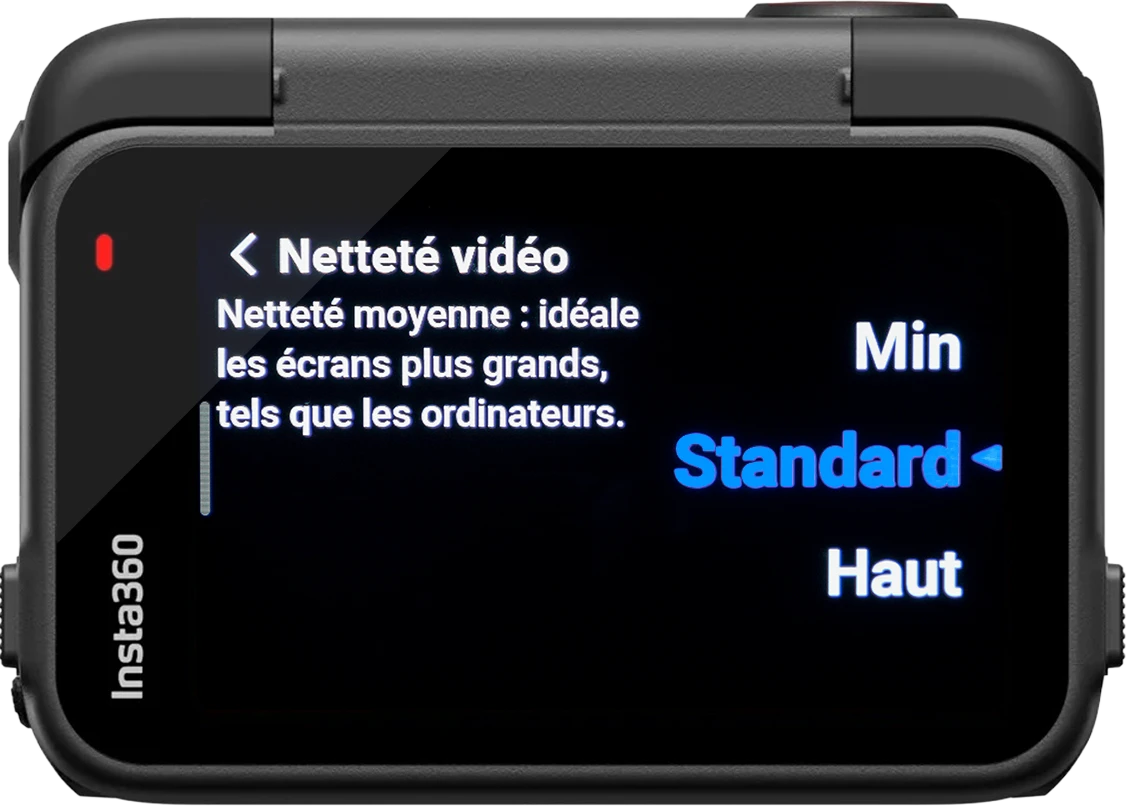
Standard - On the parameter «"Min"» your videos will be blurredIt's as if the camera hadn't focused, so it's not pleasant to look at. On the «" High "» there are too sharpness and the video looks as if it had been filmed with a phoneIt's unnatural and too pronounced. Note that if you like, you can play with the sharpness in the edit by increasing it or the decreasing.
Now go back and then go to the menu «"FOV"».
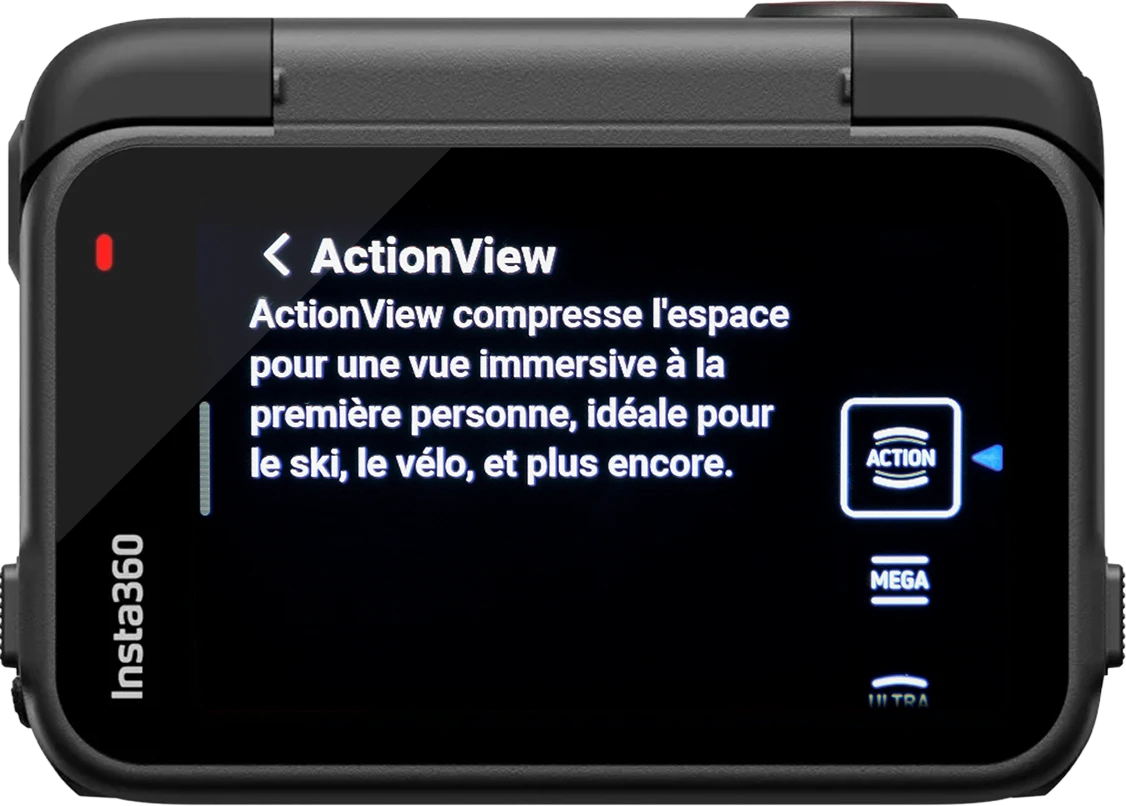
ActionView– This is the widest mode offered by the Ace Pro 2. We will discuss the importance of the field of view in more detail later in the training.
It's all over !
You can now register your presets!
If you plan to film the day and the night, As mentioned before, you can create a second profile by applying the mode PureVideo in order to switcher switching between the two modes as needed.
 English
  Français